
Transitions are the small capitalized lines at the edge of the page: CUT TO:, DISSOLVE TO:, SMASH CUT TO:. Beginners sprinkle them between every scene. Professionals use them rarely, and only when the move from one scene to the next is part of the story.
This guide explains screenplay transitions in plain terms: what each one means, how to format it, when a script needs one and when the scene heading already does the job.
Here is a short Studiovity video on the Studiovity screenplay editor, where scenes line up in standard format:
What Screenplay Transitions Are
A transition is an instruction about how one scene ends and the next begins. It sits on its own line, in capitals, aligned to the right margin and followed by a colon. A new scene heading already tells the reader that the story has moved to a new place or time, so most transitions are redundant.
                                        SMASH CUT TO:

          INT. AIRPORT GATE - DAY
The Most Common Transitions and What They Mean
- CUT TO: a straight cut. It is the default, which is why you rarely need to write it.
- SMASH CUT TO: an abrupt, jarring cut, usually for shock or comedy, for example from a character vowing never to fly to the same character on a plane.
- MATCH CUT TO: two images that look alike, such as a spinning coin becoming a spinning planet.
- DISSOLVE TO: one image fades into the next, often to show time passing.
- FADE IN: and FADE OUT.: used at the start and end of the script, not between scenes.
- INTERCUT WITH: shows two places at once, often for phone calls.
- TIME CUT: a jump forward in time within the same location.
How to Format a Transition
- Put the transition on its own line after the last action or dialogue of the scene.
- Capitalize it and add a colon (FADE OUT. keeps a period).
- Align it to the right side of the page, about 6 inches from the left edge in standard format.
- Leave a blank line before the next scene heading.
Software handles this for you, but knowing the rule lets you check the page quickly. For the full set of page-layout rules, see our complete guide to formatting a screenplay.
When You Should Use a Transition
Use one only when the cut itself carries meaning. Good reasons include:
- A joke or reveal lands on the cut. A line is spoken, and a smash cut shows its opposite.
- Two images rhyme. A match cut ties two scenes together visually.
- Time passes in a way the reader must feel. A dissolve can show a long, slow wait better than another scene heading.
- The story jumps. A TIME CUT warns the reader that a few hours or days have gone by in the same place.
If none of these apply, skip the transition and start the next scene heading. Readers are happier with clean pages.
When to Leave Transitions Out
Most scripts run entirely on scene headings. Leave transitions out when:
- You are writing a spec script. Directors and editors decide cuts, and spec readers see a long run of transitions as a beginner habit.
- The cut is a plain move from one scene to the next.
- You are tempted to direct the camera. Lines like PAN TO: or ZOOM IN: belong to the director.
Transitions vs Scene Headings vs Editing Cuts
New writers often confuse the three. A scene heading names the location and time. A transition is a note about how the story moves between scenes on the page. An editing cut, such as a J-cut or L-cut, is a decision made later in the edit room, where sound leads or trails the picture. Our post on J-cuts and L-cuts explains the editor’s side of this. As a writer, you only suggest a transition when it shapes how the story reads.
Check Your Transitions in Context
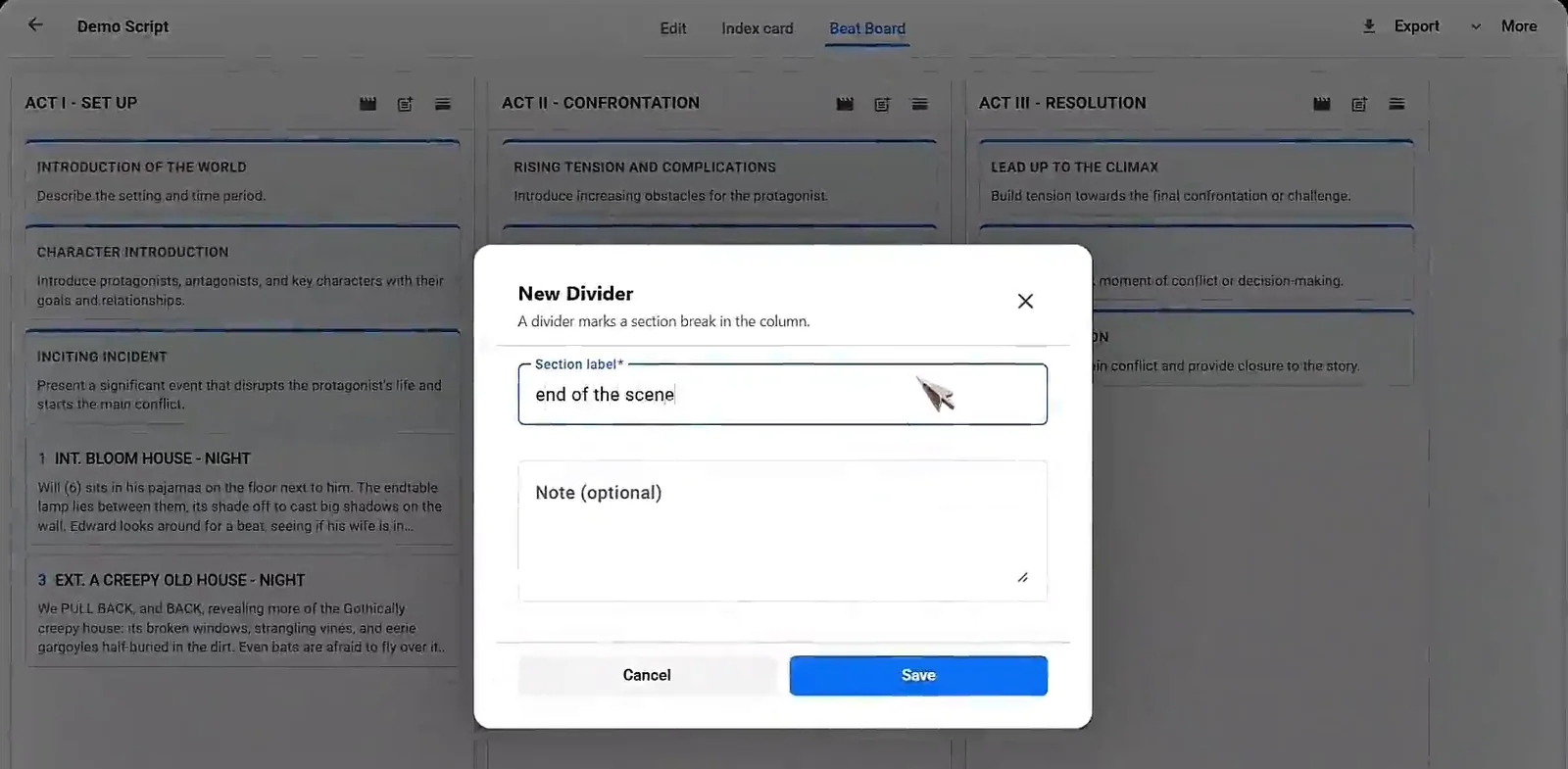
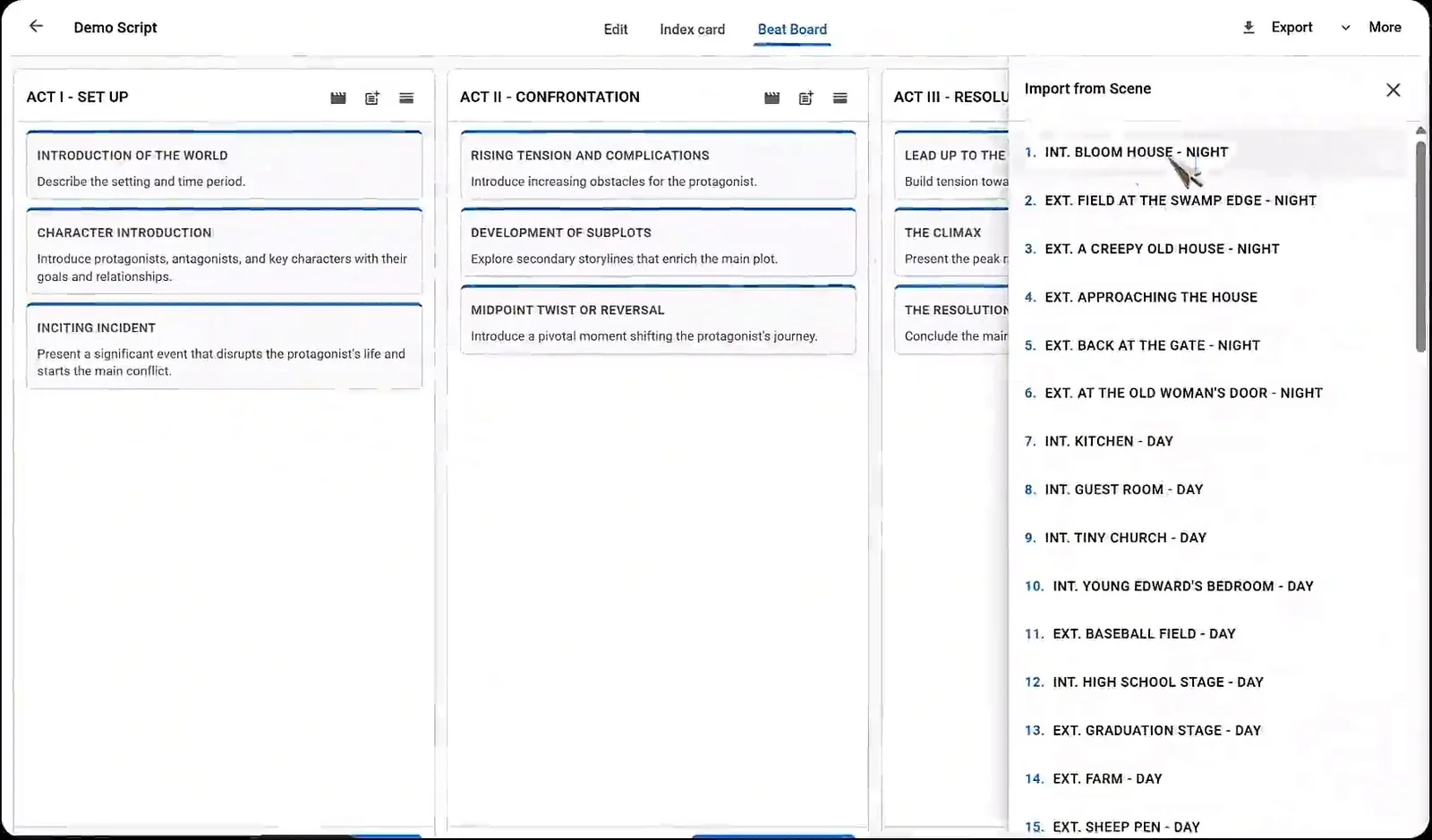
You can only judge a transition when you see the scenes on either side of it. In the Studiovity screenwriting software you can switch between the script view, the index card view and the beat board, so you can see the order of scenes and test whether a cut or dissolve belongs between two of them.
Transition Examples You Can Copy
Smash cut for comedy
Rae folds her arms and says she will never sing in public.
SMASH CUT TO:
INT. KARAOKE BAR – NIGHT
Rae belts out the final line of a ballad as the room cheers.
Dissolve for time
DISSOLVE TO: works well when a character sits at a hospital bed. The reader feels the hours pass without another scene heading.
Match cut for theme
A boy tosses a ball in the air. MATCH CUT TO: the same ball, now a basketball in a stadium, years later.
How to Edit a Draft Full of Transitions
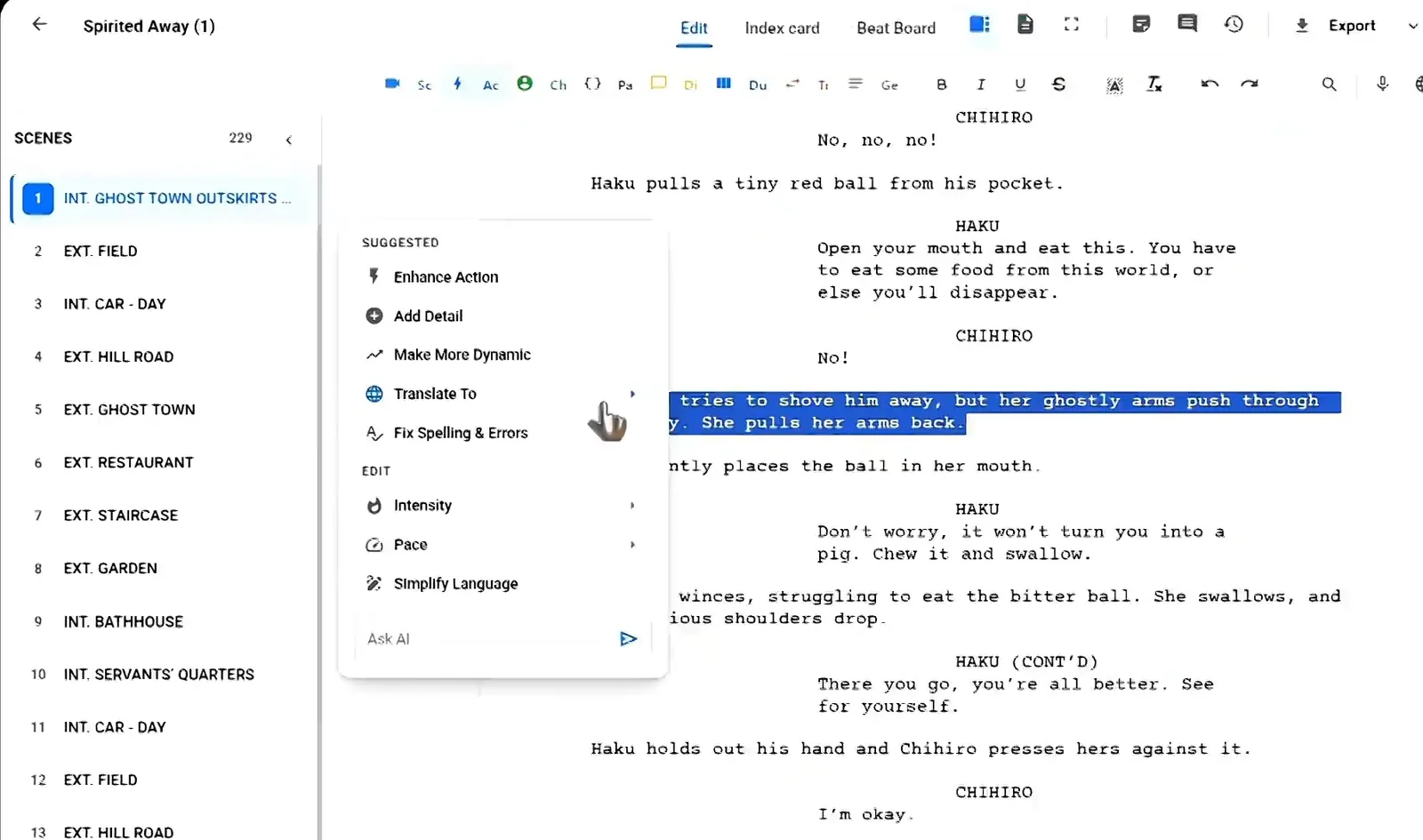
- Search your draft for the words CUT TO and DISSOLVE.
- Delete every plain CUT TO: that only links two normal scenes.
- Keep a transition only if you can explain why the cut matters.
- Read the scene before and after aloud. If it flows, you do not need the line.
- Make sure no two transitions land back to back.
When you are ready to test your edit, open the draft in the Studiovity screenwriting editor and compare the pages before and after.
FAQ
Do I need a transition at the end of every scene?
No. Scene headings do the job, so most scenes end with plain action or dialogue.
Should I write FADE OUT at the end of my script?
Yes. FADE OUT. is the standard ending, followed by THE END if you like.
Are transitions different in TV scripts?
Teleplays may use FADE OUT and act breaks, and some shows use transitions more freely, but the same rule applies: only write one if it matters.
Can I use more than one transition in a row?
Avoid it. It makes the page look busy and gives the reader no new information.
Cleaner Pages with Studiovity
Strong transitions are rare, deliberate and correctly placed. Studiovity gives you standard format, a scene list and card views to see your story order and exports to PDF, Fountain or FDX. Start your next script in Studiovity and keep only the transitions that earn their place.