We’ve all experienced the dreaded “I-forgot-what-to-film” panic when trying to turn a basic video idea into reality. In practice, scattered notes inevitably disrupt AV content creation and confuse your crew. To Create Professional AV Scripts and prevent costly production errors, you need a reliable map for the eyes and ears. An AV script (Audio-Visual) solves this chaos by separating your visuals from your dialogue into a straightforward, two-column document.
Learning how to Create Professional AV Scripts using Studiovity software takes this clarity to the next level. Quality professional AV scripts rely on the “Sync Principle”—meaning if a camera shot and voiceover share the same line, they happen simultaneously. Studiovity brilliantly automates this layout, saving you hours in post-production while protecting your creative vision.
Setting Up Your Digital Desk: Launching Your First Script in Studiovity
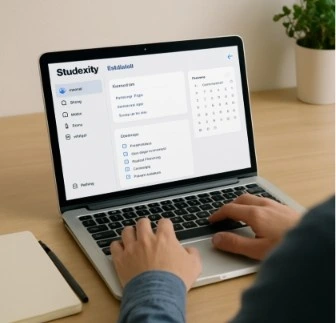
Think of the project dashboard as your digital desk, keeping every tool within easy reach. Before writing, you will fill out your script metadata. These are simply digital sticky notes—like your client’s name or project title—that organize your work. Because Studiovity acts as a collaborative, cloud-based scriptwriting software for production teams, these basic details ensure you never misplace a file.
Instead of staring at a blank page, you can launch your project quickly using proven video script templates. This approach helps you Create Professional AV Scripts faster and with greater consistency. Follow these three quick steps to start:
- Click “Create New Project” from your dashboard.
- Select the ‘AV Script’ category.
- Choose the Studiovity two-column script template.
With your digital workspace fully prepped and organized, you are ready to begin drafting.
The Master Blueprint: Mastering the Two-Column Layout
Ever tried to explain a video idea to a colleague, only to realize your notes make no sense? A multi-column script layout for video production solves this instantly. Think of this layout as “The Sync.” The left side dictates what we see, while the right handles what we hear. If items share a horizontal line, they happen simultaneously.
Adding visual cues and audio instructions in Studiovity is straightforward once you know the basic shorthand. These techniques help creators Create Professional AV Scripts that are easy for crews to follow. Break your ideas down like this:
- Visual Column (Left): Detail what the camera captures. Include B-roll (extra footage, like a close-up of a smartphone) and Lower Thirds (on-screen text, like a guest’s name and job title).
- Audio Column (Right): Document what the audience hears. Use VO (Voiceover) for an unseen narrator, plus any SFX (Sound Effects, like a swoosh) or background music.
Nailing this alignment prevents panic on filming day. If your VO mentions a new app feature, the B-roll showing it must sit directly across from that text. By automating this perfect side-by-side matching, creators often call Studiovity the best software for audio-visual script formatting. This functionality helps teams Create Professional AV Scripts without formatting headaches. With your sight and sound perfectly paired, you are well-equipped to prepare your crew for the shoot.
Beyond the Words: Using Scene Tags and Visual Cues to Guide Your Team
Does your script feel cluttered with camera directions and prop lists? Instead of cramming every detail into your visual column, you can use Scene Tags and Script Metadata Tags. Think of these tools as digital sticky notes attached to specific moments in your video. They tell your team exactly what lighting or equipment is needed without muddying the main text. This setup naturally creates an integrated storyboard and AV script workflow, letting you plan visual shots right alongside your spoken words.
Even with a clean layout, moving text around manually can get messy. Luckily, fixing script formatting errors in Studiovity is effortless. The platform’s automated AV script conversion features instantly resolve common formatting headaches that often ruin a shoot and help you Create Professional AV Scripts more efficiently:
- Misaligned Rows: When a voiceover runs longer than the video description, the software automatically locks the rows together so sight and sound never fall out of sync.
- Missing Audio Cues: The system easily highlights empty audio blocks, ensuring you never forget to plan background music or sound effects for a visual scene.
With your tags placed and rows perfectly aligned, your blueprint is foolproof. Now that your solo vision is fully documented, it is time to bring your crew into the loop.
From Draft to Director: Real-Time Collaboration and Exporting
Writing your draft is only half the battle; getting your crew aligned is where the magic happens. Using Studiovity’s real-time script collaboration tools, you can invite colleagues into your workspace to leave instant feedback. Instead of emailing endless revisions back and forth, you streamline your remote script review and approval process entirely online. If an editor accidentally deletes a vital scene during this stage, the version history feature acts as a built-in safety net to instantly restore older drafts.
When the team finally signs off, a single click exports a clean, industry-standard PDF that looks incredibly professional to your clients. This effortless formatting is exactly why specialized video platforms rank as the top alternatives to MS Word for scriptwriting. These export tools make it easier to Create Professional AV Scripts and share them with stakeholders. Now that your project is fully finalized and securely saved, you are ready to film.
Your 30-Minute Roadmap: Taking Your First Script to Production
Before you ever touch a camera, your script is the most important piece of gear you own. By applying this framework to writing commercial scripts, you transform scattered notes into a reliable blueprint. You are no longer guessing on set; you are producing professional corporate video scripts built on reliable synchronization. The ability to Create Professional AV Scripts consistently gives your production team a significant advantage.
Validate your script’s flow by reading it aloud before filming, then complete your first draft using this 30-minute action plan:
- Log into your Studiovity dashboard.
- Pick a two-column script template.
- Write just 10 lines of paired video and audio.
Follow these simple steps to Create Professional AV Scripts that keep every production organized, collaborative, and ready for filming.
Why Choose Studiovity for AV Script Creation?
Studiovity simplifies the process of creating professional AV scripts by combining scriptwriting, collaboration, formatting, and production planning in one platform. With ready-to-use two-column templates, real-time team collaboration, and automated formatting tools, Studiovity helps creators stay organized, save time, and turn ideas into production-ready AV scripts with confidence.