
Typing is not the only way to get a first draft down. Many writers talk through a scene while walking, driving or pacing, and the dialogue that comes out sounds more natural than anything typed at a desk. Speech to text turns that spoken draft into words on the page, ready for editing.
This guide covers how to write a screenplay with speech to text: why it works, a simple setup, what to say aloud for formatting, and how to clean up the draft afterwards.
Here is a short Studiovity video on screenwriting from a phone, a handy companion for dictating drafts on the move:
Why Dictating a Screenplay Works
Speaking is faster than typing for most people, and it keeps you in the scene. When you voice a conversation out loud, you hear where the rhythm breaks, where a line runs too long and where a character would never say what you wrote.
Speech to text helps most with:
- First drafts of dialogue. You hear the voice as you write it.
- Writer’s block. Talking is less intimidating than a blank page.
- Accessibility. Writers with RSI, vision or mobility needs can draft without a keyboard.
- Capturing ideas on the move. A scene idea at the bus stop can be spoken into a draft.
What You Need to Start
You only need a microphone, a quiet place and an editor that accepts dictated text. A phone headset or a laptop microphone is enough. The tool matters less than the habit: speak in short bursts, then stop and read.
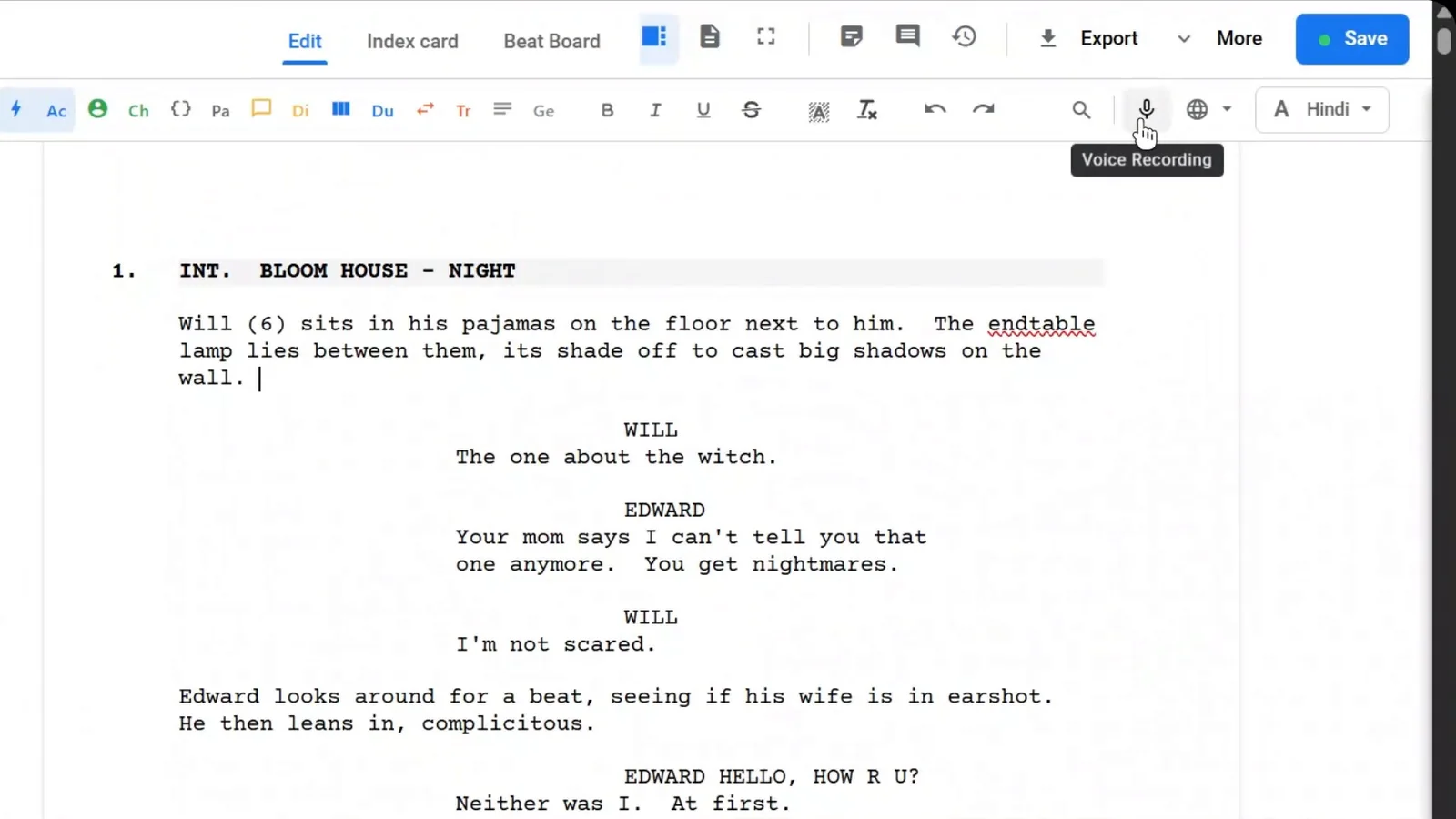
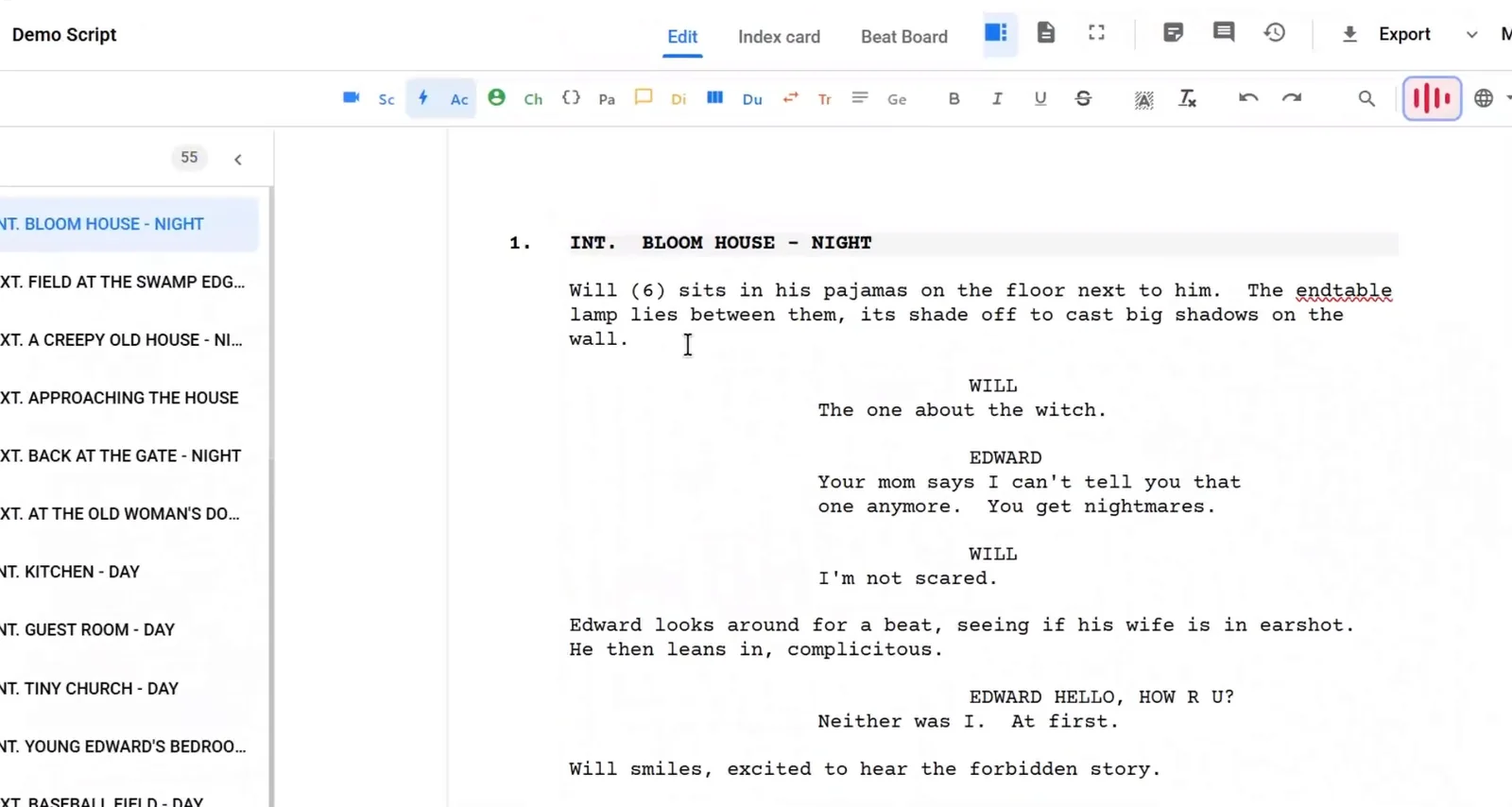
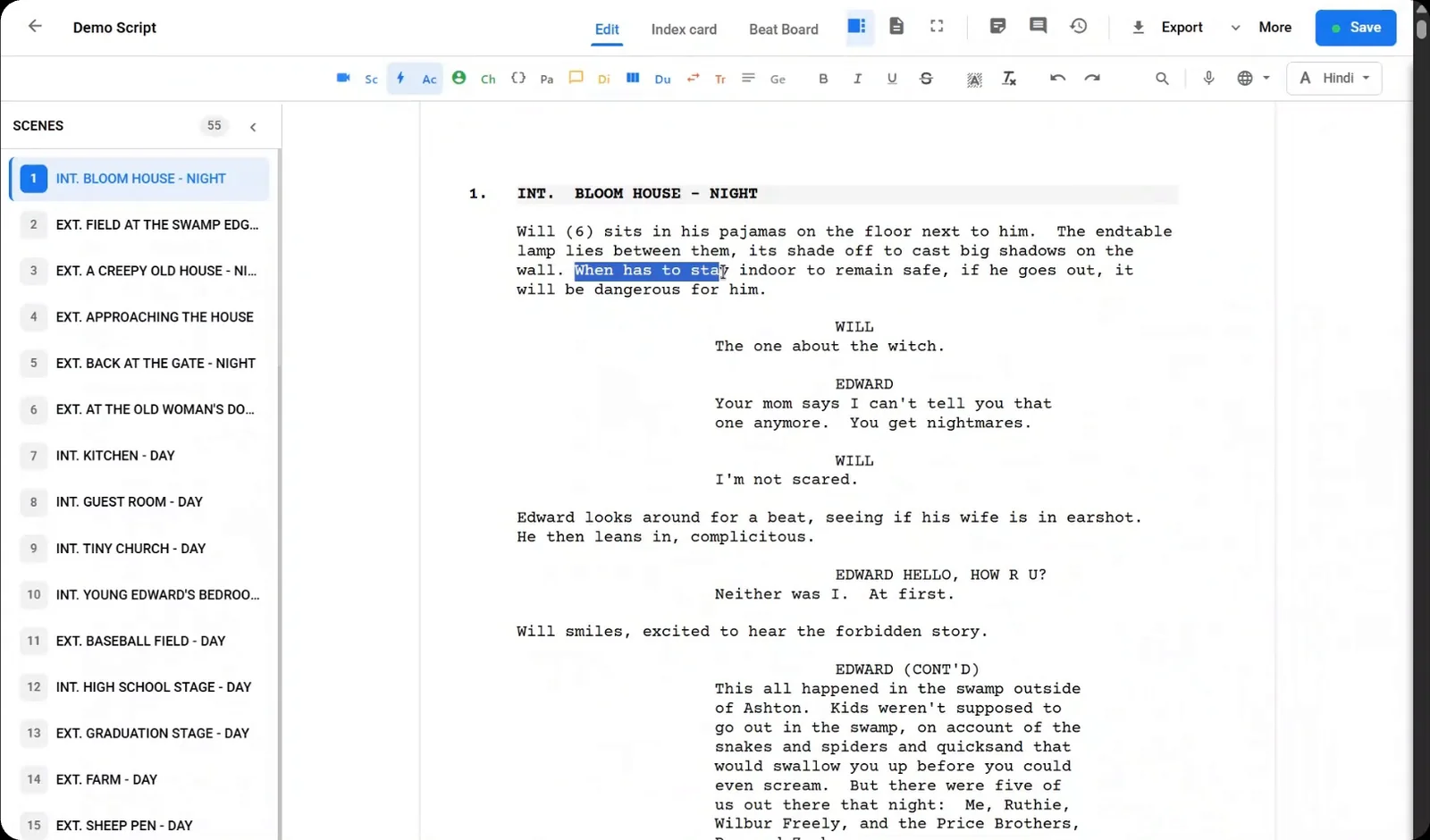
In the Studiovity script editor, the toolbar includes a Voice Recording button and a language selector, so you can dictate straight into the script page without leaving the editor.
How to Write a Screenplay with Speech to Text, Step by Step
- Decide the scene first. Know where it takes place, who is in it and what changes by the end. Dictating without a plan creates long, loose pages.
- Choose your language. Set the recognition language before you start, especially if your characters switch between languages.
- Start with the scene heading. Say the location and time, then check that the editor formatted it as a heading.
- Dictate action in short lines. Describe what we see in the present tense, in two or three sentences at a time.
- Say character names, then their speech. Pause between speakers so the text does not run together.
- Stop often and read. A minute of speaking can produce two pages. Read as you go.
- Finish by formatting. Fix names, headings and cue lines in the editor once the words are down.
Saying Punctuation and Format Out Loud
Most speech engines add basic punctuation on their own, but you may need to say “comma”, “period” or “new line” to get what you want. A few habits help:
- Say character names the same way every time so the text matches your cast.
- Spell unusual names once and fix them afterwards with find and replace.
- Say “new line” or pause clearly between action and dialogue.
- Avoid saying format words like “parenthetical” in the middle of a line. Add them by hand later.
Try a short test scene before you commit to a full session, so you learn how your microphone and language setting handle your voice.
Try Voice Recording in Studiovity
Speech to text is easiest when the script page and the microphone sit in the same place. Open the Studiovity screenwriting software, pick your language in the toolbar, press the voice recording button and speak your scene.
Cleaning Up a Dictated Draft
A dictated draft always needs an edit. Plan a clean-up pass for each session.
Fix names and places
Search for misspelled character names and replace them. Do the same for locations in scene headings.
Break up long speeches
Spoken lines tend to run on. Split a long speech into shorter beats with action between, and cut filler like “you know” and “well” unless the character really talks that way.
Check formatting
Make sure scene headings are in capitals, character cues are separate lines and dialogue is indented. If you draft away from your desk, our guide to writing a screenplay on mobile has more tips.
Read the dialogue aloud again
You wrote it by speaking, so read it once more as a listener. Cut any line that sounds written rather than spoken. For more on shaping speech on the page, see how to write great dialogue.
Tips for Better Dictation
- Work in a quiet room. Background noise breaks recognition.
- Speak at a normal pace. Rushing causes errors, and over-slow speech sounds unnatural.
- Use short sessions. Ten to fifteen minutes is enough, then edit.
- Dictate dialogue in character. Say each line the way the character would.
- Keep a list of corrections. Note recurring errors so you can fix them fast.
You can practice with a short test scene in the Studiovity screenwriting editor before you dictate a full draft.
When Speech to Text Is Not the Right Tool
Dictation is great for rough dialogue and first drafts. It is less helpful for fine-tuning action lines or tightening the final page count, where you need to see each word. Many writers dictate the draft, then type the polish.
FAQ
Does speech to text work for scripts in other languages?
It depends on the editor and the languages it supports. Choose your language in the editor before dictating, and check a short test first.
Will dictation format my screenplay automatically?
Do not count on it. Expect to fix scene headings and cue lines afterwards.
Is a dictated first draft any worse than a typed one?
Not on its own. It often has more natural dialogue, but it needs more editing for length and structure.
Can I dictate on my phone?
Yes, many writers do. Use a mobile-friendly editor and a good microphone.
Write Your Next Scene Out Loud with Studiovity
Speech to text lets you draft faster and hear every line as you write it. Studiovity puts voice recording, standard screenplay format and export to PDF, Fountain or FDX in one editor. Start your next script in Studiovity and speak your first scene today.